How to manage exceptional closures on Manawa?
Close a time slot, limit your available spots or block an entire week in 2 clicks from your back-office. The step-by-step guide to keeping your Manawa calendar always up to date, an
Do you want to update your rates for the new season or adjust your time slots? This technical guide explains how to manage your Seasons, your Pricing categories, and your Price list independently from your back office.
Welcome to Manawa, the website for booking outdoor activities around the world. From diving to canyoning, we connect adventure enthusiasts with professional local instructors to guarantee unforgettable experiences.
API Connection: If your prices and seasons are synchronized via booking software (list of connected software here), you don’t need to do anything: everything is managed directly by your software.
To make your activity bookable, the system relies on three interconnected elements:
This section defines when the activity is available and at what times.
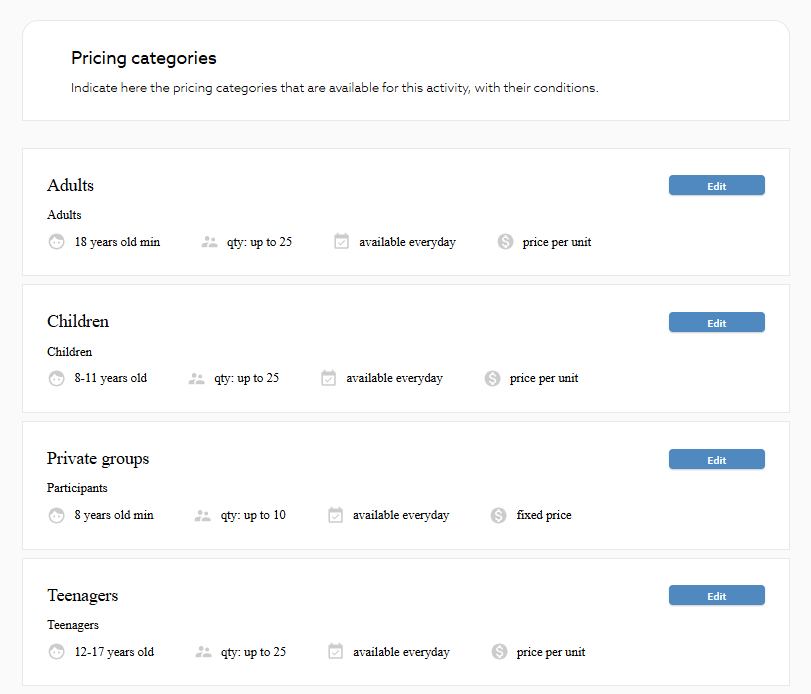
This is where you determine who is booking and under what conditions.
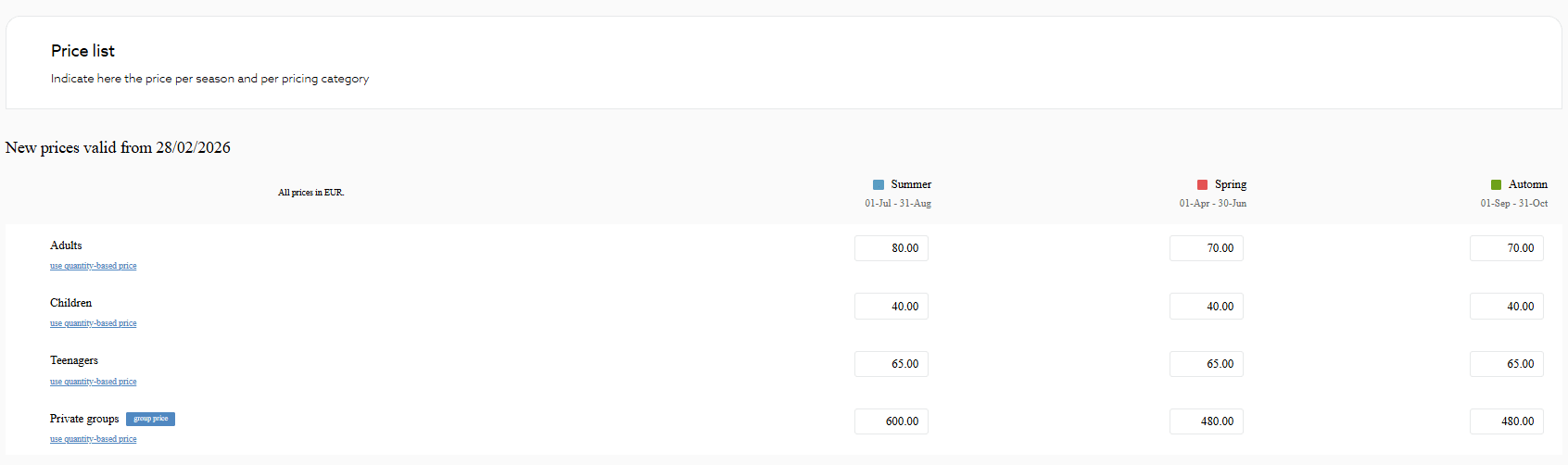
This is the final step where you input your rates into the grid generated by your seasons and categories.
Rate Parity: According to our contract, your prices on Manawa must be identical to your direct prices. This is essential for customer trust and the brand image of your business.
Once your changes are saved:
Note: The "starting from" price on search result pages may take a few days to update due to cache, but the rate in the booking tunnel is updated instantly.
Need help?
The Manawa team is here for you! Contact us at [email protected] for a brief personalized training session.

Head of Supply & Outdoor Partnerships at Manawa, I am passionate about outdoor activities and dedicated to making them more accessible to convince everyone to go out and discover them!
Close a time slot, limit your available spots or block an entire week in 2 clicks from your back-office. The step-by-step guide to keeping your Manawa calendar always up to date, an

Learn how to master every tab in your back office: from booking management to the strategic configuration of your promotions.
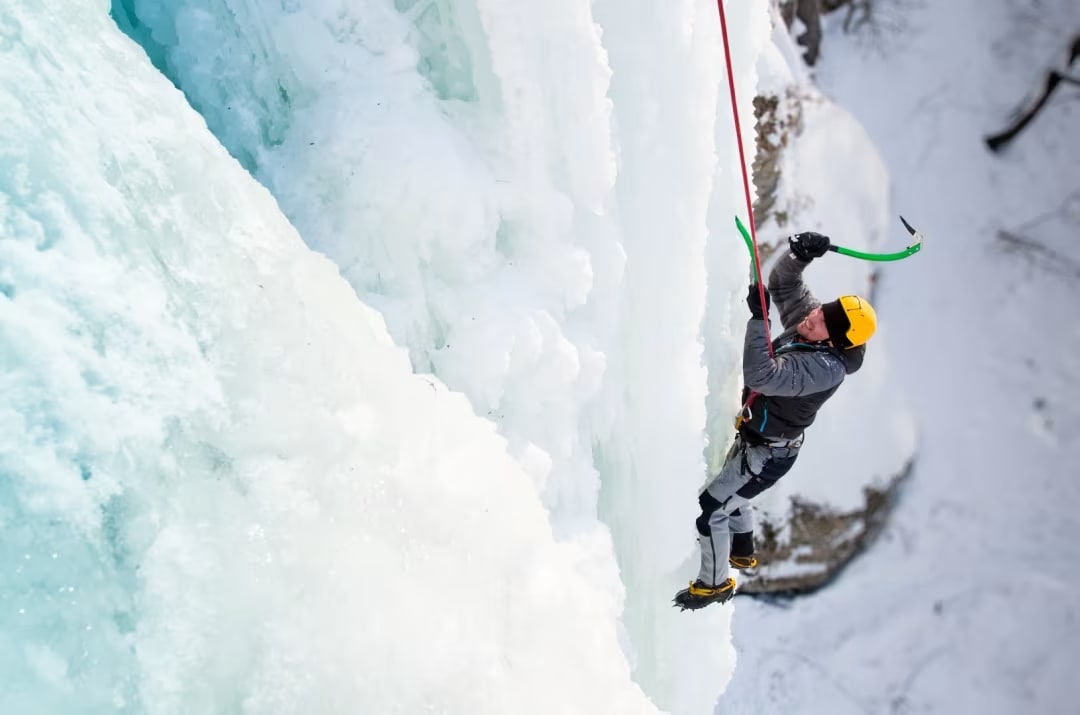
Welcome to the FAQ article dedicated to answering the most common questions our outdoor activity partners ask. At Manawa, we strive to provide seamless support, ensuring you have al
Discover a new way to explore Europe: checkyeti and Manawa are joining forces to offer even more outdoor adventures across the continent.
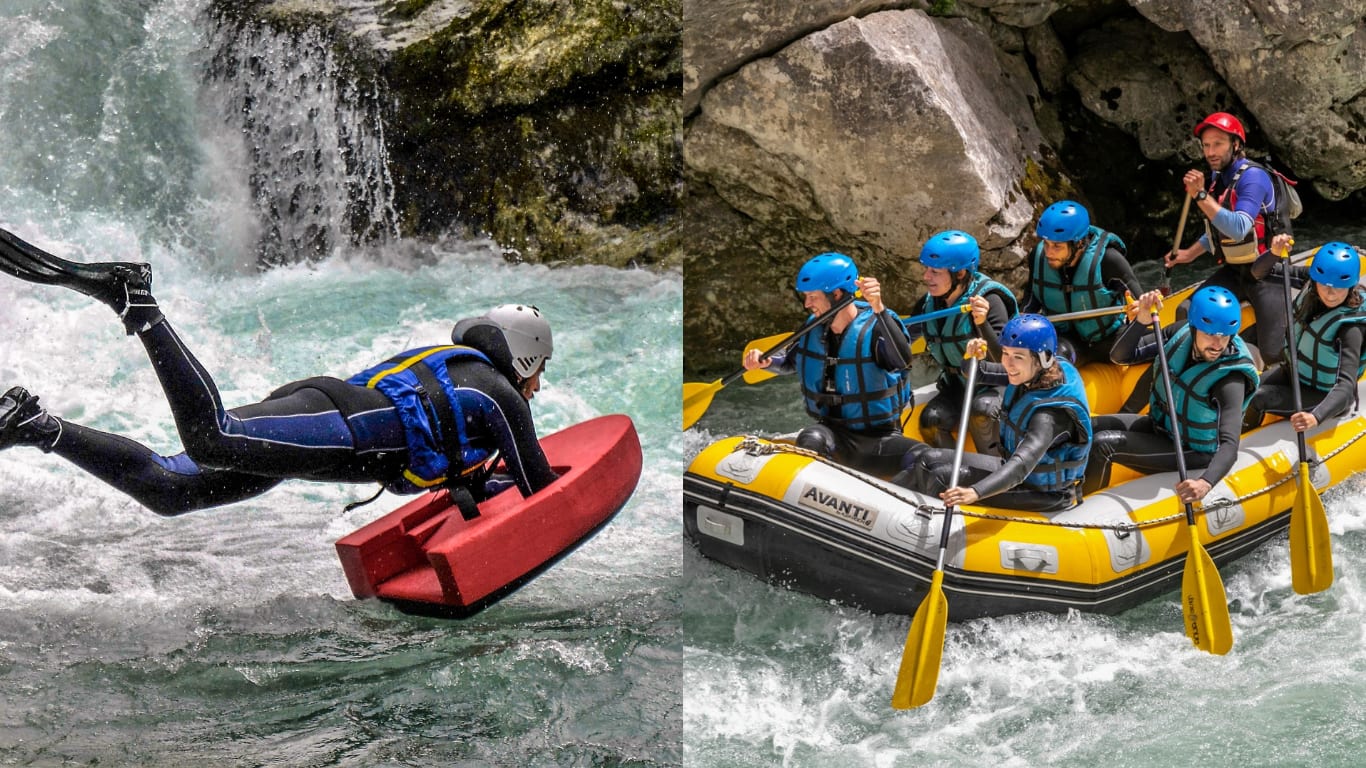
Choosing between rafting and hydrospeed for your next river trip? Discover the key differences to find your perfect whitewater match.

Activity couldn't go ahead? Trigger a full refund directly from your back-office in 3 clicks, no email, no waiting. The quick and complete guide.